

Guide
App Store screenshot best practices
Screenshots do most of the talking in a store listing. These are the rules worth following, and how to apply each one in AppReleaseKit.
Make the first three count
App Store search results show only the first few screenshots of a listing, so the order matters more than the count. Put the clearest benefit first, the next two strongest after it, and treat the rest as supporting detail.
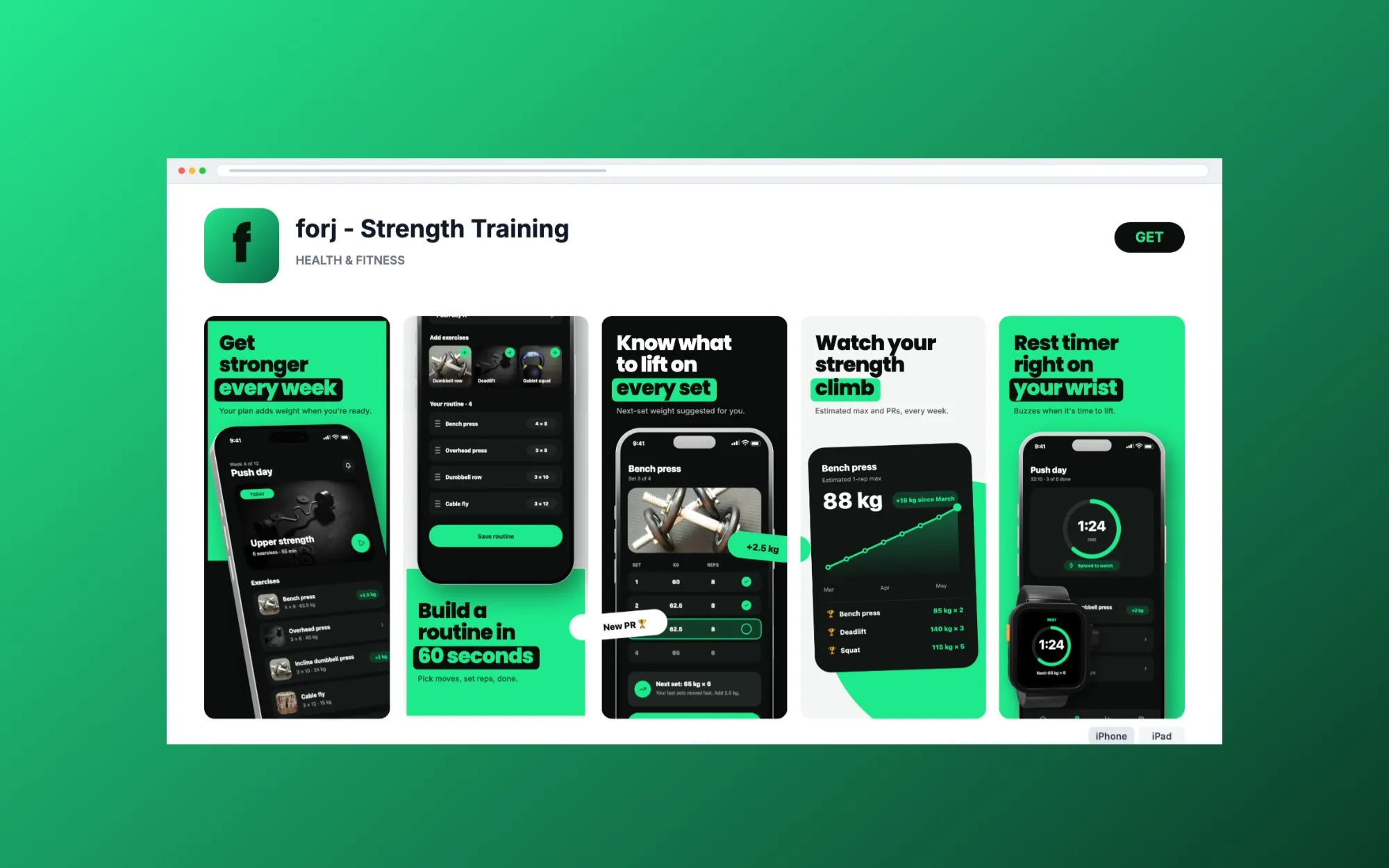
One idea per screenshot
- One headline, one device, one benefit. A screenshot that explains three things explains none.
- Keep headlines to three to six words. They are read at thumbnail size, in a scroll.
- Lead with the outcome, not the feature name. "Plan a week of meals in a minute" says more than "Meal planner".
- Make the text large. If you cannot read it at a quarter of its size, it is too small.
- Show the real app in use. Apple's App Review Guidelines ask that screenshots show the app in use, not only title art, a log-in page or a splash screen.
Keep the set consistent
The set is read left to right as one story. Use one background family, one device finish and one headline style across it. A device or shape can also run across neighbouring screens in AppReleaseKit, so the set reads as a single picture when swiped.
Localize the set, then check the fit
A listing in the visitor's own language is easier to trust. Translated headlines are rarely the same length, and German and Finnish words run long. Translate in place, and let the text check flag anything that no longer fits in any language.
Before you upload
- 01
Pick the story
Write the five benefits in the order a new user would care about them. That order is your screenshot order.
- 02
Start from a template
Open a finished set close to your app type, swap in your screens and rewrite the headlines.
- 03
Check the rules
Export at each store's exact pixel size, on a solid background. Check App Store Connect and the Play Console for the current limits, roughly 1 to 10 screenshots on the App Store and 2 to 8 on Google Play.
- 04
Localize and export
Add your languages, run the text check, and export every size in one click.
Frequently asked questions
How many screenshots should an app have?
Enough to tell the story, usually five to eight. The App Store allows up to ten per device size and Google Play up to eight, but the first few do most of the work. Check the store consoles for the current limits.
What should the first screenshot show?
The main thing your app does for the person, in a headline of a few words, on your best screen. It is the one image almost everyone will see.
Should I put screenshots in a device frame?
It is a choice. A frame tells people at a glance that the image is a phone and gives the set a finished look. A full-bleed screen shows more of the app. Try both on a template and compare.
Can I test different screenshots against each other?
Yes. Apple's product page optimization and Google Play's store listing experiments both let you compare sets. Build each variant as its own design and export both.